















Best practices
Security & Privacy
End password chaos: The 5-step guide to secure, age-appropriate logins in schools
December 23, 2025
Devyn Lackner


In the corporate world, a forgotten password is a 60-second inconvenience. In a classroom, it’s a learning blackout. When a student is locked out, the lesson stops, the teacher becomes a tech support agent, and the IT queue explodes. This isn’t just an administrative hurdle—it’s password chaos. And for school organizations with a couple hundred up to hundreds of thousands students, IT departments usually find that password resets eat up a significant amount of their time.
Provisioning passwords creates its own kind of chaos. Many schools automatically assign passwords and don’t give students the option of changing them themselves. This can lead to formulaic passwords that are easy to learn or guess, opening up a wide swathe of attack surface that leads to greater vulnerability. Resetting 25,000 passwords is one thing, but what about dealing with a breach that may have severe financial, reputational, and educational implications?
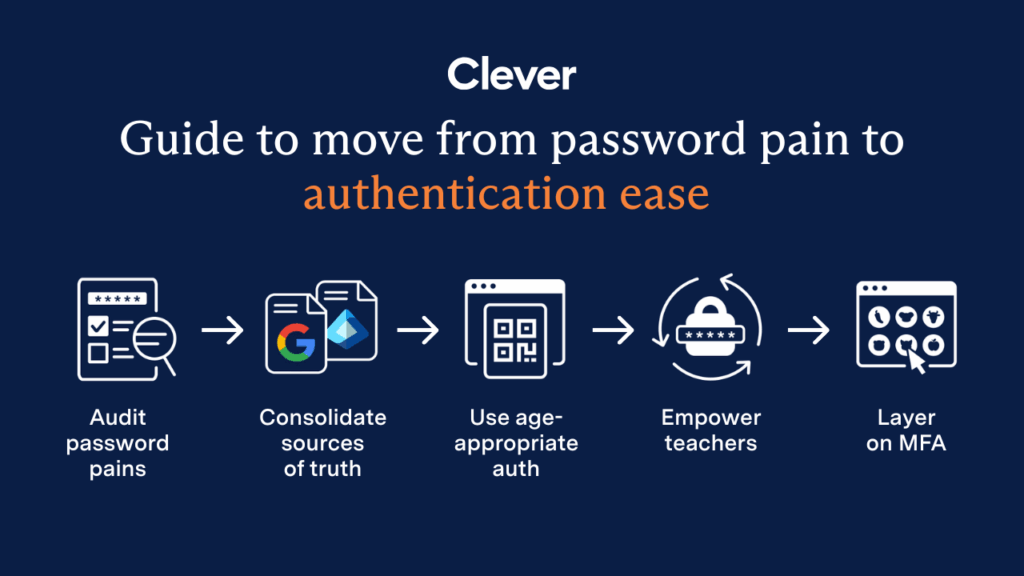
Frankly, this whole situation creates chaos—but it’s a kind of chaos that you don’t have to live with. By following our five-step guide, you’ll be able to do more than just reclaim the time you spend manually resetting passwords. You will also be able to drastically reduce your attack surfaces, diminishing the risk of cyberattacks while offering genuine improvements to the learning environment.
Step 1: Audit Your Password Pain Points
We’ve already spoken about the overwhelming work that may be necessary to keep up with password reset requests across an entire school system. These problems are exacerbated by events like the first day of school or the day after vacation, when students forget their passwords en masse after extended absences. In situations like these, learning can be paused for most of the day as IT departments struggle with tickets—but this is only the tip of the iceberg as far as password security is concerned.
Let’s think about the kind of passwords that students are assigned. Common formulas we hear about may include a student’s date of birth, their last name, and potentially their student information system (SIS) ID number. This schema is relatively simple to implement and easy for teachers to support, but it’s a security liability. Even the experts at National Institute of Standards and Technology (NIST) agree: the old way of complex character strings is out. The new way? Passphrases that actually make sense. Current NIST recommendations suggest a 15-character passphrase—but interestingly, they no longer require the headache of forced numbers or special characters.
If students learn the common password formula, then any mischievous student can gain access to another’s account and wreak havoc. Meanwhile, if an attacker breaches the credentials for a single student, there is significant potential for access escalation as they look for permissions loopholes or use social engineering tactics.
Meanwhile, there are more secure alternatives. Aric Dershem, CIO at KIPP NYC, learned how easy it was to provide more secure passwords without extensive customization.
Later, we’ll talk about a different way to assign randomized passwords on an age-appropriate basis.
Step 2: Consolidate Your Sources of Truth
In a perfect world, a single school system would use a single identity platform (IDP). Unfortunately, that’s not always possible. A school might end up using any combination of Google, Active Directory, or Microsoft Entra ID, as infrastructure needs evolve over time. This step involves mapping out your current authentication flows in order to identify the potential for optimization. Try to answer the following questions:
- How many credentials do your students and staff use today and how many do they need?
- How many systems are currently in use?
- Can you use single sign on (SSO) so that students only need to remember one password?
- How do you distribute passwords to new students and staff?
Ideally, you’d have students use the same secure password for every IDP. That’s because having them memorize a single more complex password is more secure than potentially using two simpler passwords. But what happens when you reset a student’s Google password, but not their Microsoft Entra account?
The most likely result is that a student now has to memorize two relatively complex passwords to access the two separate services. This increases the likelihood that they’ll forget at least one of the passwords in the near future, which means yet another support ticket. Instead, consider what it might take to synchronize password resets across independent IDPs, so that resetting one password automatically changes it everywhere else.
Step 3: Enforce Age-Appropriate Policies
We don’t give 8-year-olds the same textbooks as 17-year-olds, so why would we give them the same login requirements? Ending the chaos means matching security to the student’s abilities. By scaling from scannable badges for our youngest learners to complex passphrases for teenagers, we replace frustration with a foundation for digital literacy.
Here are a few ways that schools can adapt login techniques for different age levels:
- Age 5-8: Here, scannable QR codes or Clever Badges can securely replace passwords. The student simply holds a badge printed with a QR code up to a webcam and is logged in automatically, no typing necessary. For systems that still require a password be provisioned, set these to be very complex to reduce the risk for account breach. Combining with device-free MFA designed for young learners, you get two layers of secure authentication.
- Age 8-11: Students at this age can use passwords based on short words randomly generated from a school-safe dictionary. Memorable passphrases using short words are easier to remember and set a foundation for good information security practices later in life.
- Age 12-18: Here’s where password requirements can start to become more complex, incorporating numbers, symbols, and multiple words to create passphrases that are difficult to break via standard techniques such as dictionary attacks, which attempt to breach logins by using a list of common passwords.
With Clever, administrators can set granular authentication, password, and MFA policies that scale to any age group. Combined with additional safeguards, such as preventing passwords that have previously been found in breaches, this solution helps protect students in an age-appropriate manner while helping them prepare for a secure, digital future.
Related Content: Learn how teachers saved 200k hours in a school year with Clever Badges
Step 4: Empower Teachers as Password First-Responders
In the enterprise world, most workers have some degree of control over their own passwords. But in schools, password resets are the responsibility of the central IT department. What if we shared the power of the password reset with trained teachers? This would not only free up IT resources, but also reduce learning disruptions, keep teaching on track, and improve the educational experience overall.
Consider what it might look like in your school system if you were to share the access control responsibility and increase teacher autonomy but with secure guardrails. Document your ideal authentication support flow and identify where the gaps or bottlenecks are today.
- Should teachers be able to see or reset student passwords? What would this unlock for your IT teams?
- Should students be able to reset their own passwords? Which age groups should have this option?
- What password policies should be in place for these reset passwords to ensure they’re secure and complex enough?
Clever’s Secure Password Management solution combines lessons from enterprise cybersecurity with features that work for schools. Like many enterprise solutions, end-users are allowed “delegated resets,” where users can reset their own passwords if they have trouble logging in. This allows students to access digital learning without straining IT resources.
Step 5: Secure Everyone with MFA
Finally, passwords are most effective for information security when combined with other layers of authentication. No matter how strong you make your passwords, it might still be easy to convince school-age children (and adults for that matter) to hand them over. That’s why NIST recommends Multi-factor authentication (MFA) solutions, which make it difficult for attackers to successfully gain entry to accounts with stolen passwords alone.
Not every MFA solution is specialized for the educational environment, however. For example, many MFA solutions involve using a cell phone as a token–to receive a text or generate a one-time password–but many students don’t have phones or they aren’t allowed due to cell phone bans. When you look for an MFA solution, you should find one that’s flexible enough to fit the classroom.
With Clever Classroom MFA, administrators can use traditional access tokens or they can choose between phone-free options such as login pictures or six-digits PINs. Delegated classroom troubleshooting tools also extend to MFA. Teachers can view and reset student MFA methods to keep learning on track.
Apply layers of intentional authentication security, without classroom friction
Security is difficult to get right—but it doesn’t have to be that way, even for schools. With Clever, IT departments are offered security that adheres to the reality of their classroom settings while providing layers of smart account protection. These include:
- Truly random passwords and passphrases that scale according to student ability
- Automated account and credential delivery via email or login URL
- Delegated password resets to help IT departments focus on what matters
- Synchronized password resets across every IDP you use, centrally in Clever
- Automatic blocking of passwords found in breaches upon reset
- Traditional and phone-free MFA methods
By reclaiming time without weakening protections, you’ll be able to pursue critical infrastructure upgrades that can make your digital learning ecosystem even safer and more enriching. Furthermore, you’ll create an environment in your schools where security is embedded into the learning experience, helping prepare your students for a brighter, more secure future.
See how Clever Secure Password Management and Classroom MFA can help you complete all five steps from this guide!
Contact a Cybersecurity Specialist

More to read
Districts
Teachers
August 3, 2026
District-Wide Defense: A Texas School District’s Successful Rollout of Student MFAEdinburg CISD needed to secure student identities across a 30,000+ Chromebook fleet—without overwhelming an already stretched IT help desk. With Clever's age-tiered MFA framework, the Texas district enrolled 99% of its 32,000 students within two months, virtually eliminating password reset tickets and empowering teachers to resolve credential issues in the classroom.

Districts
Global
Teachers
August 3, 2026
One Sync, Half a Million Students: TDSB’s Rostering TransformationCanada's largest school board needed a smarter, more secure way to manage student data across a growing suite of learning applications—without adding to its IT team's workload. With Clever, Toronto District School Board built a customized, application-level rostering model that automated data sync from PowerSchool, gave teachers class-level access, and strengthened data security for 500,000+ students and staff.

Districts
Teachers
July 7, 2026
Newcastle Grammar School Meets Essential 8 Compliance with Clever MFANewcastle Grammar School closed a long-standing MFA gap for students without personal devices by deploying Clever's visual authentication integrated with Microsoft Entra ID, reducing SOC security alerts and unlocking modern authentication features like Windows Hello and Face ID. The school can now confidently answer board and cyber insurance questions on MFA coverage, with plans to extend the program to Years 8–9 and beyond.